Pouch Good Forums
I want to share with you the solution of the FPS drop problem that I researched and found
Normally I Get Stable 60 FPS And Occasionally Drops
After Making This Optimization, I Got 30 FPS More And It Was 90 FPS But I Think You Will Increase By 20 FPS Guaranteed
Note: ( Take a Backup on All Kinds of Computers )
Description;
1. First, Press the Windows Key and Type Graphics Settings Instead of Search and Enter

2.Then We Make As In The Photos

3.From here we add both GTAV and Five Mi by clicking Browse
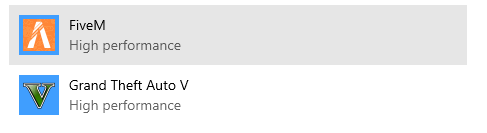
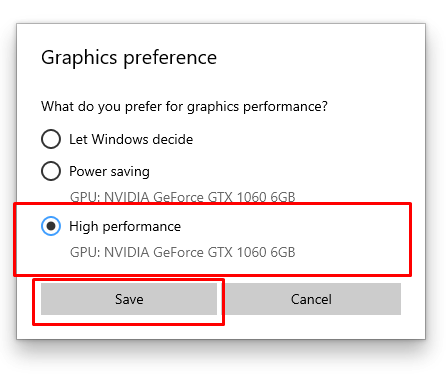
We Are Doing The Same Process On Both Graphic Settings That's It
4. Then we go to the file location of Fivem and Gta V
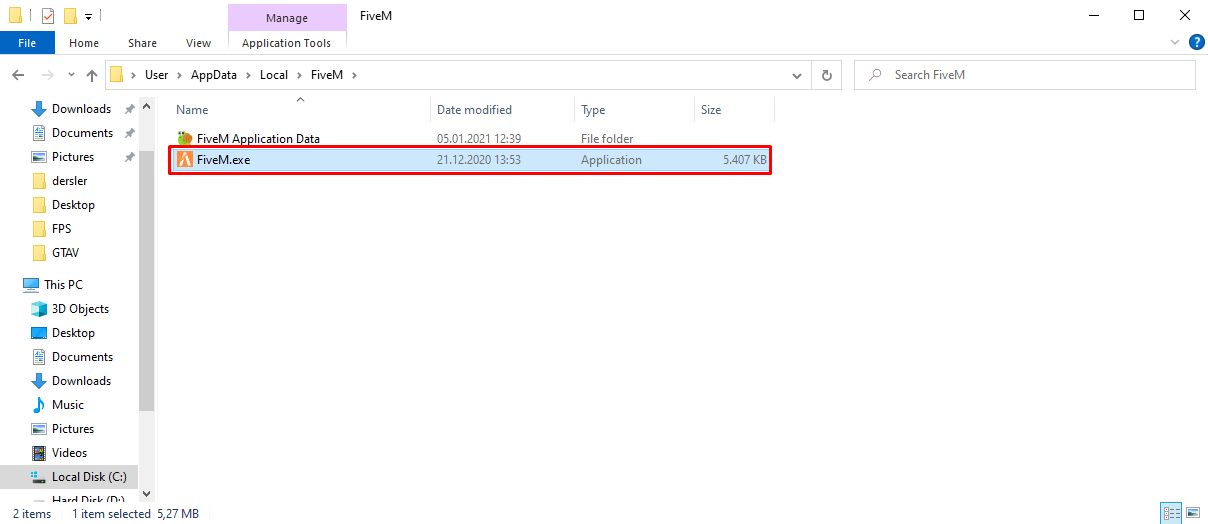
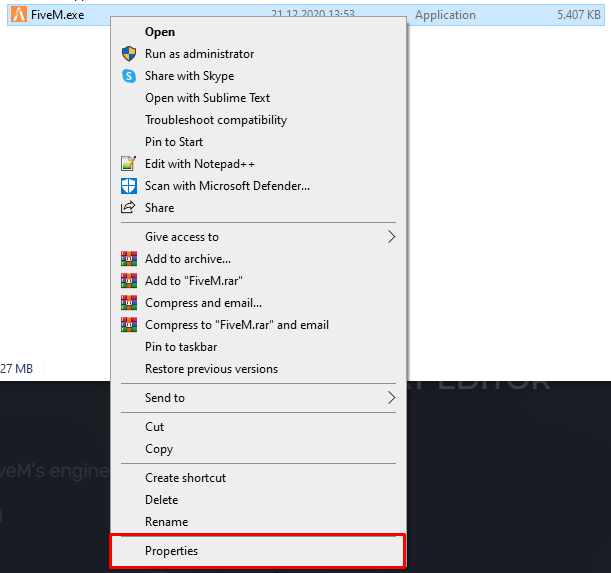
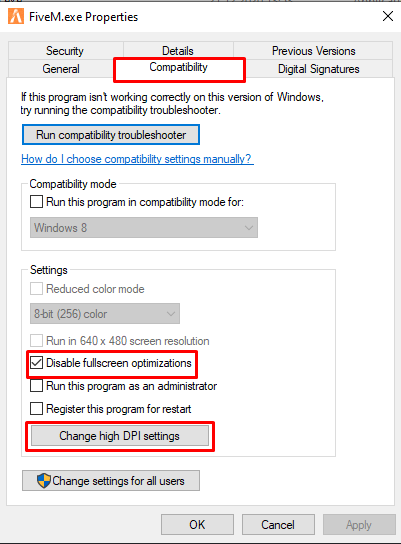
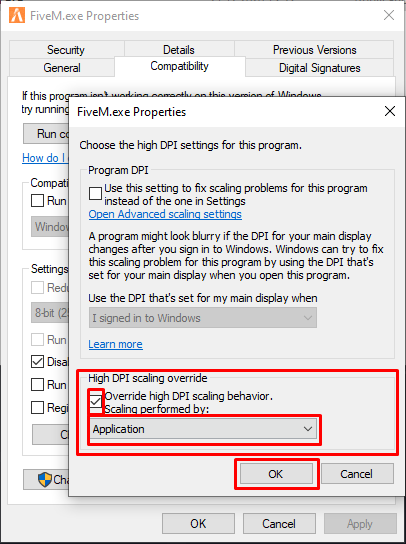
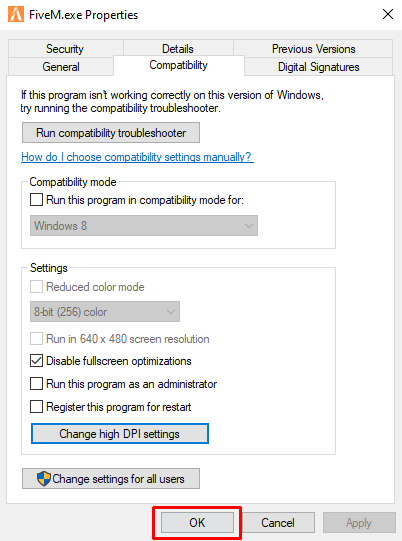
We do these operations in Gta V.
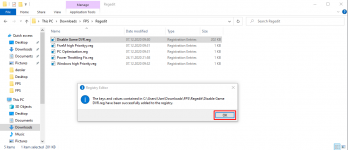
5. You are downloading the file I will leave here and you are performing the operations as in the photo.
After downloading these files, we extract them from the rar and open them one by one and apply the operations as below.
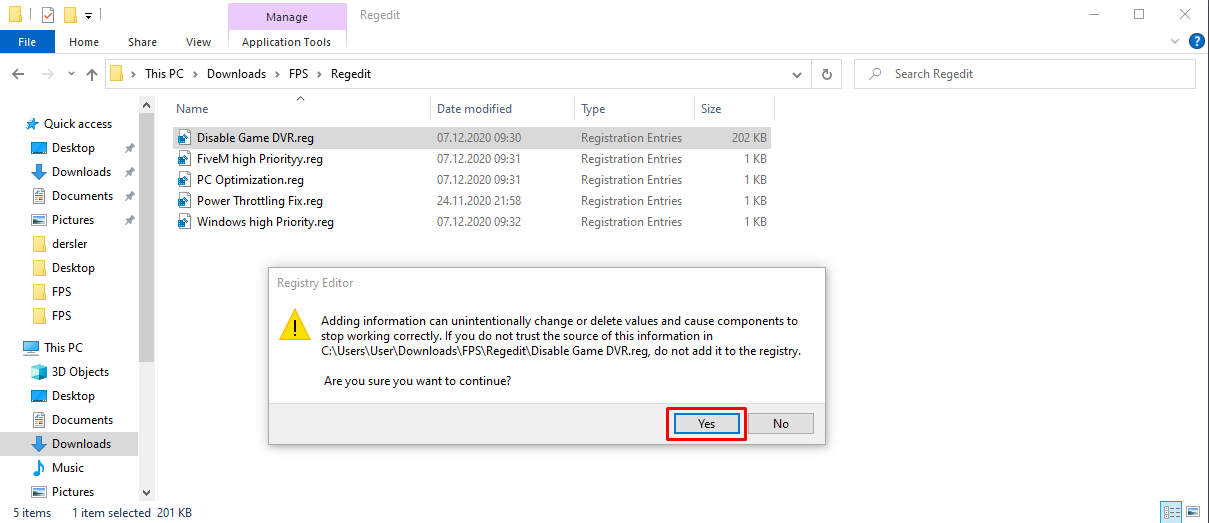
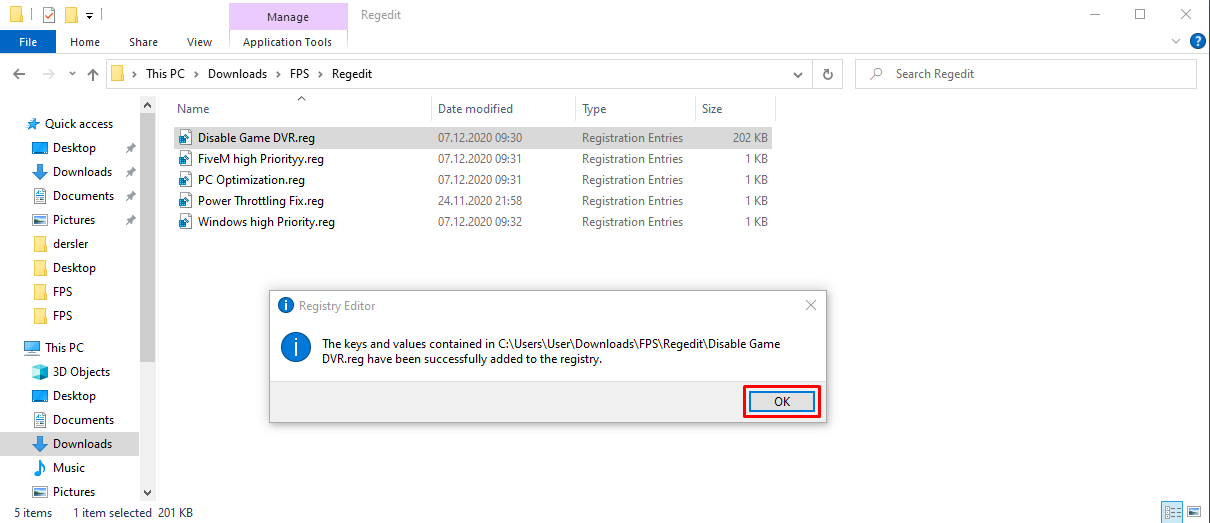
We apply the same process in all of them and it's done, I leave one more file at the end, this is the setting made automatically in the game
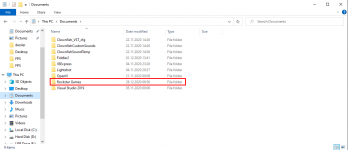
6. We Enter the Documentation Section of Your Computer
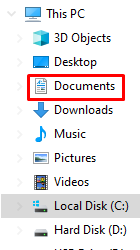
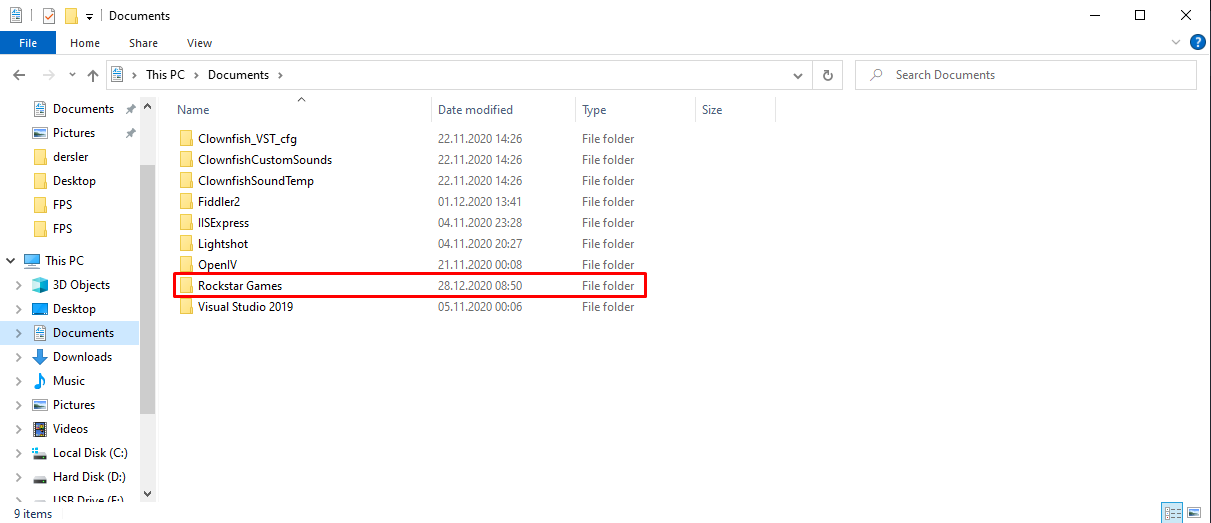
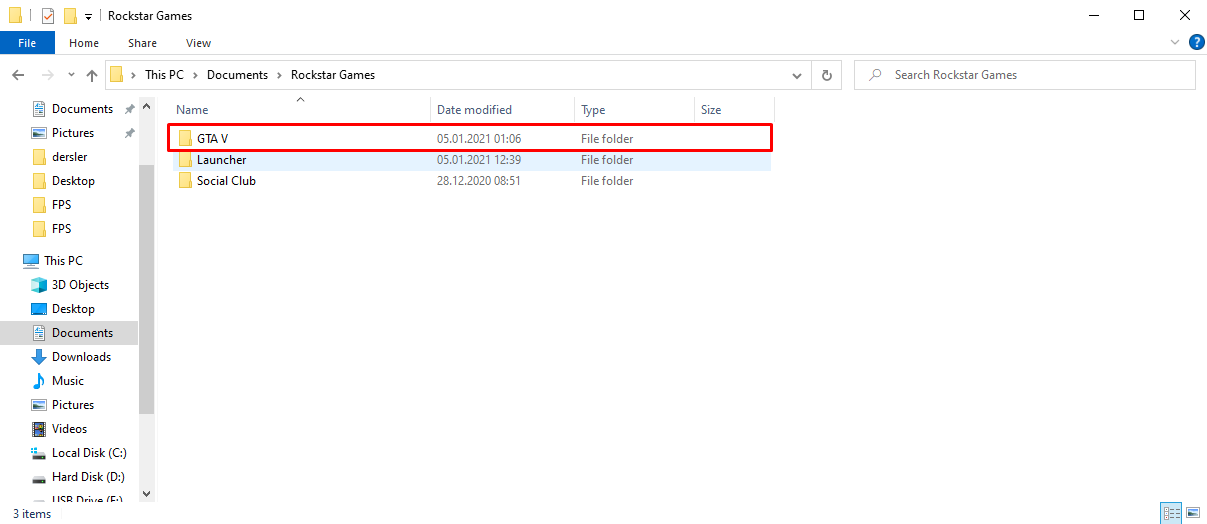
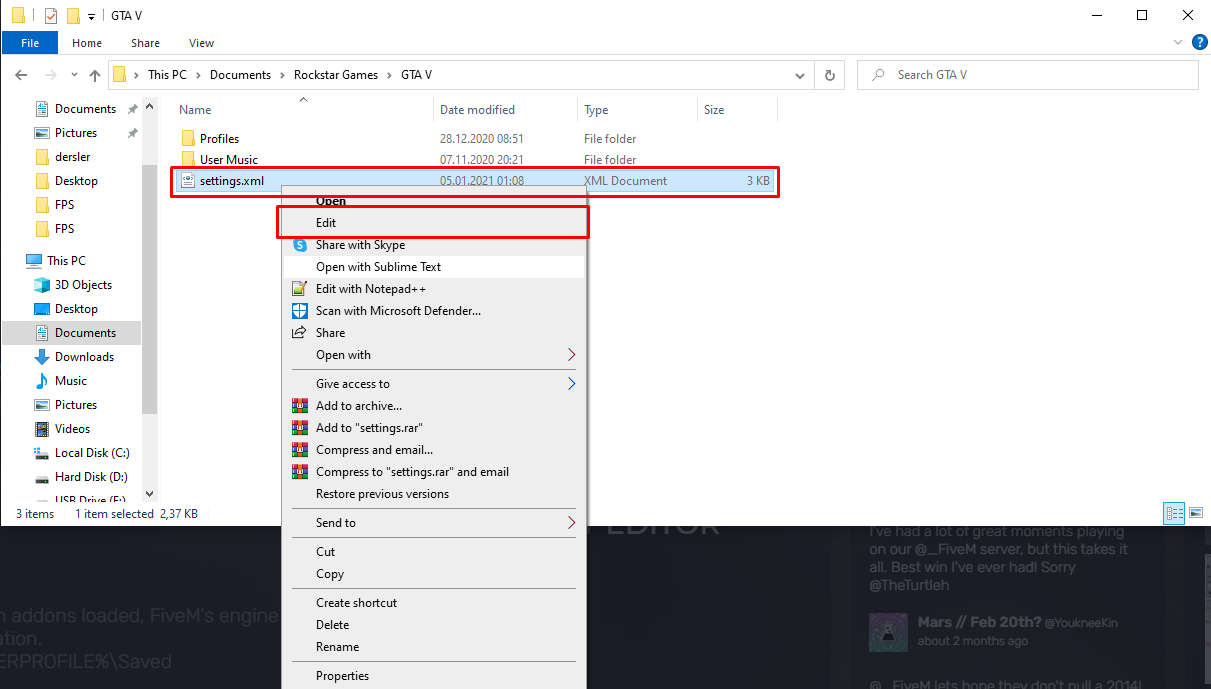

Marked Place At The End Is Your Video Card Just Like I Marked It Copy There And Copy And Paste This File To Your Desktop Or Anywhere The Reason Is To Revert To Your Old Settings If You Don't Like My FPS Settings.
Then open the file you downloaded and paste the video card I copied at the bottom and put those settings where I showed you from the documents and I would be glad if you try the FPS setting and write how many FPS you will get here.
Note: ( Take a Backup on All Kinds of Computers )
I want to share with you the solution of the FPS drop problem that I researched and found
Normally I Get Stable 60 FPS And Occasionally Drops
After Making This Optimization, I Got 30 FPS More And It Was 90 FPS But I Think You Will Increase By 20 FPS Guaranteed
Note: ( Take a Backup on All Kinds of Computers )
Description;
1. First, Press the Windows Key and Type Graphics Settings Instead of Search and Enter
2.Then We Make As In The Photos
3.From here we add both GTAV and Five Mi by clicking Browse
We Are Doing The Same Process On Both Graphic Settings That's It
4. Then we go to the file location of Fivem and Gta V
We do these operations in Gta V.
5. You are downloading the file I will leave here and you are performing the operations as in the photo.
Hidden link for visitors, to see
Log in or register now.
Hidden link for visitors, to see
Log in or register now.
After downloading these files, we extract them from the rar and open them one by one and apply the operations as below.
We apply the same process in all of them and it's done, I leave one more file at the end, this is the setting made automatically in the game
Hidden link for visitors, to see
Log in or register now.
Hidden link for visitors, to see
Log in or register now.
6. We Enter the Documentation Section of Your Computer
Marked Place At The End Is Your Video Card Just Like I Marked It Copy There And Copy And Paste This File To Your Desktop Or Anywhere The Reason Is To Revert To Your Old Settings If You Don't Like My FPS Settings.
Then open the file you downloaded and paste the video card I copied at the bottom and put those settings where I showed you from the documents and I would be glad if you try the FPS setting and write how many FPS you will get here.
Note: ( Take a Backup on All Kinds of Computers )